 ☰
☰Getting Started: User Onboarding Guide
Enterprise
Onboarding Process for Momentus APIs
Log in to Enterprise.
Navigate to the Main Menu.
Either search for Integration Hub or go to EVENTS AND OPERATIONS > Event Management and Coordination > Utilities, and click on Integration Hub.
Click on the APIs dropdown in the header.
Click on API Credentials.
Click on Request Connection.
Once approved by the administrator, you may proceed with the addition of credentials.
Adding Credentials
After onboarding the Momentus APIs, either click on Configuration or click on the APIs dropdown in the header, then click on API Credentials.
Navigate to the Credentials tab.
Click on Add Credentials.
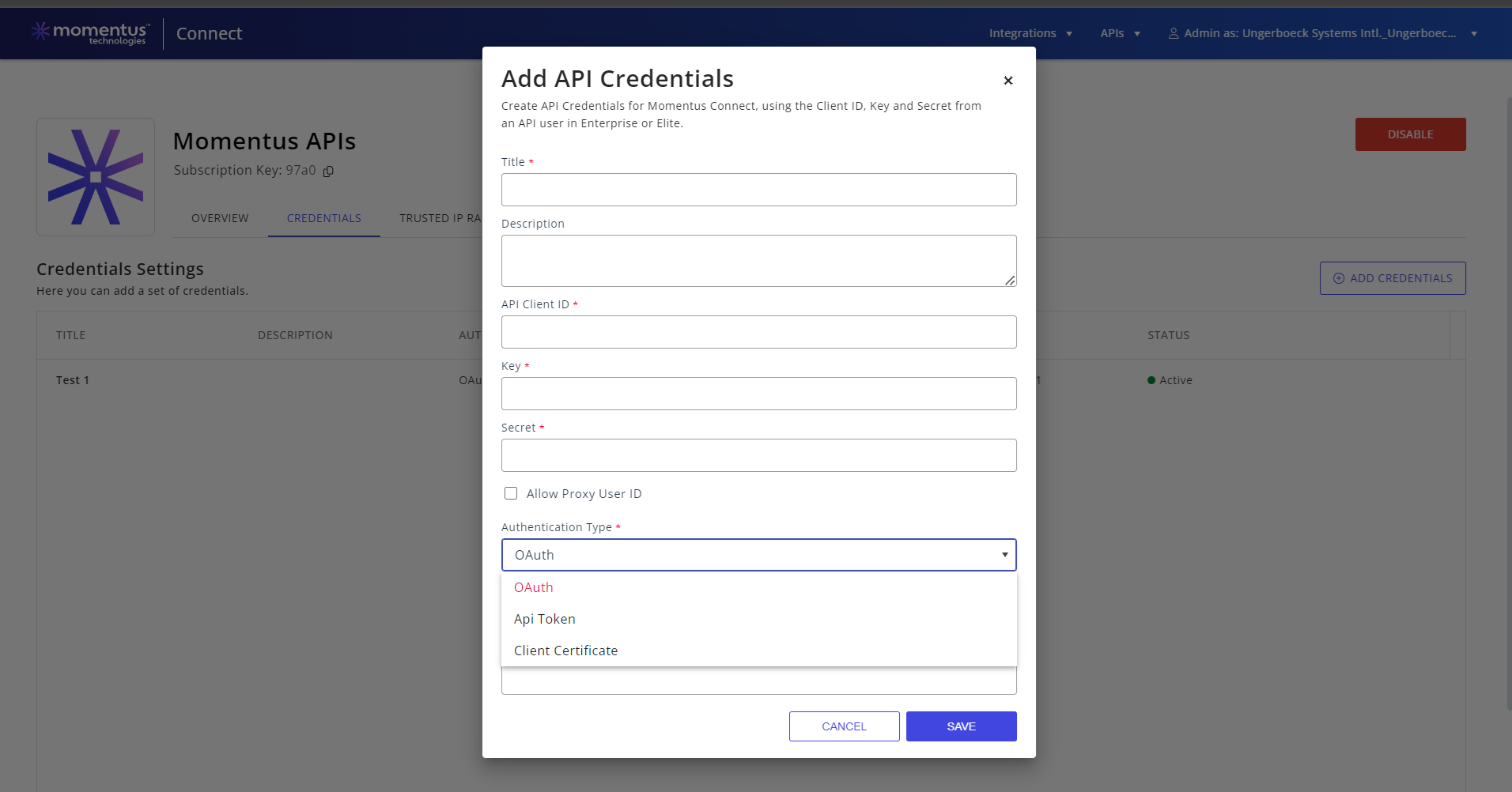
Credentials can have any of the three authentication types: OAuth, API Token, or Client Certificate.
Using OAuth:
Fill in the Title, Description (optional), API Client ID, Key, and Secret fields (API User Details).
Tick the Allow Proxy User ID checkbox (optional) if you want to set a Proxied User ID.
Select Authentication Type as OAuth and then fill in the Email and Password fields.
After the credentials are saved successfully, the access token generated initially will expire after the time mentioned on the screen.
If the access token has expired, a refresh icon will be displayed.
Click on the refresh icon to refresh the access token.
Using Api Token:
Fill in the Title, Description (optional), API Client ID, Key, and Secret fields (API User Details).
Tick the Allow Proxy User ID checkbox (optional) if you want to set a Proxied User ID.
Select Authentication Type as API Token.
Using Client Certificate:
Fill in the Title, Description (optional), API Client ID, Key, and Secret fields (API User Details).
Tick the Allow Proxy User ID checkbox (optional) if you want to set a Proxied User ID.
Select Authentication Type as Client Certificate.
Attach the client certificate, which should have the file extension .pfx. The client certificate's password is optional.
v2 API Query Params:
Search On Demand: This feature is exclusive to Search APIs. By using the search query parameter, you can perform nested searches within Lookup Objects based on unique key.
Eg:- /api/v2/Accounts?orgCode=10&search=Class eq 'O' and Type.Code eq '1B'
In the example above, for the Accounts List, the query searches within the Type Lookup for entries where the Code matches '1B'. Here, the Code is the unique key within the Type Lookup Object. Executing this query returns all accounts with Type.Code as '1B'.Get By Demand: This feature is available for both Search and Get By Id APIs. By using the includeFields query parameter, you can retrieve additional keys in lookup objects beyond the usual ones.
Eg:- /api/v2/Accounts/10/00014166?includeFields=Type.Category
In the above Get By Id example, for Accounts, passing includeFields with the value Type.Category will also include the Category key in the existing Type Lookup Object. By default, the existing Lookup Object only contains Code and Description keys.Get All Fields: This feature is available for both Search and Get By Id APIs. By using the includeAllFields query parameter, you can fetch extra keys present in the v1 API.
Eg:- /api/v2/Accounts/10/00020002?includeAllFields=true
In the above Get By Id example, for Accounts, passing includeAllFields with the value true will return all the extra keys present in the v1 API. This feature is designed to reduce the chattiness of the API. If not specified, includeAllFields defaults to false, and only a limited number of keys are returned.